You sent the shipment confirmation, then realized the package was still sitting with you. Or the reverse: you had already shipped it but forgot to confirm. For seller-fulfilled orders, this kind of mismatch between the shipment confirmation and the actual dispatch can trigger a pre-confirmed shipment abuse (PCSA) warning, or push up your Late Shipment Rate and Cancellation Rate. This article walks through how to tell the two directions of mismatch apart, how to cross-check your order records, how to handle orders that are already mismatched, and how to think about a plan of action and preventing recurrence.
What happens when you confirm shipment: four things the action triggers
According to Help, sending the shipment confirmation triggers the following on Amazon's side.
- Charges the buyer's credit card for the order amount
- Records the sale in your selling account
- Sends the buyer an email notifying them the item has shipped
- Updates the shipping information shown in the buyer's account
Conversely, the buyer isn't charged until you send the shipment confirmation (prepaid convenience-store payments work differently). If you confirm shipment while the package is still with you, only the charge and the buyer's screen switch to "Shipped," out of step with what has actually happened. Help itself warns, in an "Important" note, that you should confirm shipment only after handing the package to the carrier. Confirming shipment requires the ship date, shipping method (carrier), a valid tracking number, and the actual ship-from address.
This article is based on Seller Central Help as of September 2026. Figures, screens, and procedures can change, so please also check the latest Help content.

Determine which way the mismatch runs: "confirmation first" or "dispatch first"
A mismatch can run in either of two directions, and the rules involved and how to fix it differ depending on which one you're dealing with.
| Item | Confirmation first, handover later | Handover first, confirmation later (or never sent) |
|---|---|---|
| Common scenario | You confirm shipment for the day's orders in a batch when printing labels or before pickup, and some of the handovers slip to the next day or later | You handed the package over, but the confirmation went out after the expected ship date, or you simply forgot to send it |
| What the buyer sees | The order shows as "In transit" even though shipping hasn't actually started, and the tracking information goes unchanged for a long time | No shipping email arrives, and no charge occurs, until you confirm shipment. If no confirmation is sent within 7 business days of the expected ship date, the order is canceled automatically |
| Rules and metrics involved | Pre-confirmed shipment abuse (PCSA) | Late Shipment Rate, Cancellation Rate, Valid Tracking Rate |
Confirmation first: pre-confirmed shipment abuse (PCSA)
For seller-fulfilled (self-shipped) orders, sending the shipment confirmation before you hand the package to the carrier is what Amazon calls "pre-confirmed shipment abuse (出荷通知事前送信の乱用, or PCSA)." It's treated as a violation of the Seller Code of Conduct and can lead to enforcement action against your account. Help gives two ways to avoid it: confirm shipment only after handing the package over, or hand it over the same day you confirm shipment. The reasoning given is that the carrier doesn't start counting toward its delivery target until it physically scans the package. If handover slips to the next day, you're more likely to miss the estimated delivery date, which can lead to an A-to-z Guarantee claim.
A PCSA warning arrives by email, but it's only triggered when this shows up as a "pattern" across your shipments as a whole; Help states that an occasional stray confirmation won't result in enforcement action. That said, if the pattern isn't resolved even after a warning, your seller-fulfilled selling may end up restricted. We were not able to find the specific threshold (a number of instances, a time window) that Amazon uses to make this determination, so don't draw your own line based on guesswork.
Dispatch first: late shipments and automatic cancellation
The Late Shipment Rate is the percentage of orders over a 10-day or 30-day period for which the shipment confirmation was sent after the expected ship date, and it applies only to seller-fulfilled orders (sellers enrolled in the Automated Fulfillment Program (自動出荷設定プログラム, AFP) are excluded for standard orders, but the PCSA rule is separate). Even if you handed the package over on time, a late confirmation still counts as late. Policy requires you to keep this below 4%; exceeding it can lead to your selling privileges being restricted or revoked. Help also advises sending the shipment confirmation within 4 hours of pickup — if it's delayed, Amazon's system and the carrier's system fall out of sync and the package may become untrackable (if the 4-hour window would cross into the next day, send it the same day as pickup instead).
On top of that, if no confirmation is sent within 7 business days of the expected ship date, the order is canceled automatically (the number of days is worded differently on different Help pages, so also check the warning shown in Manage Orders). Even if you actually shipped the item, you won't be paid, the cancellation can't be reversed, and it counts against your Cancellation Rate (the benchmark is generally cited as under 2.5%).
"Jumping the gun" to protect your Late Shipment Rate is a trap
Help's PCSA guidance lists, as examples of what not to do, sending the shipment confirmation on end-of-day orders just to meet your Late Shipment Rate target, and confirming shipment for all orders as soon as the first batch is ready. For handling multiple orders together, Help says to confirm shipment for a batch only after you've handed that batch to the carrier. For orders you can't hand over that same day, confirm shipment after you actually hand them over (for example, the next business day). Ways to reduce the underlying delay itself are covered in identifying the causes of a high Late Shipment Rate and overhauling your shipping operations.
Check the notice you received and what's shown on screen
Start by checking the email you received and the Seller Central menu (the three-line icon at the top left of the screen) > Performance > Performance Notifications, and confirm which mechanism the notice is coming from (the screen layout can change).
| Notice or indicator | Main trigger | What to check and how to respond |
|---|---|---|
| PCSA warning (email) | A pattern of confirmations sent before handover | Check the instructions and deadline in the notice, and contact Technical Support with anything unclear |
| Rising Late Shipment Rate | Confirmations sent after the expected ship date | Check under Account Health. If there's a risk of suspension, affected sellers may see a 5-question quiz in a banner at the top of the page; if you're already suspended, submit a plan of action through "Submit Account Health Appeal" |
| Seller-fulfilled account under review | Missing or invalid tracking information, multiple buyers reporting non-receipt, etc. | Up to 30 days. Update your tracking information and gather proof of delivery for recent orders |
| Notice of account suspension or removal of selling privileges | The reason stated in the notice (such as a mismatch between the shipment confirmation and actual dispatch) | Follow the required documents, deadline, and appeal method stated in the notice. Cross-check the affected orders' records using the method in the next section before you write your explanation |
As far as we were able to confirm, Help does not provide an official sample wording for the PCSA warning email or a stated submission deadline (for what to have ready when you contact Support, see organizing your request to Technical Support). How a PCSA warning feeds into the Account Health Rating is also not officially explained. Check your screens by following how to check your Account Health Rating score, and if you're treating this as a Code of Conduct warning, also see responding to a Seller Code of Conduct warning.
A mismatch also spills over into buyer protection. If you failed to ship by the expected ship date, or didn't use a trackable shipping method or provide a valid tracking number, an A-to-z Guarantee claim may be approved automatically. If your seller-fulfilled listings have been deactivated, also see what to check when seller-fulfilled listings are deactivated.
Cross-check your order records: lay out the facts chronologically, order by order
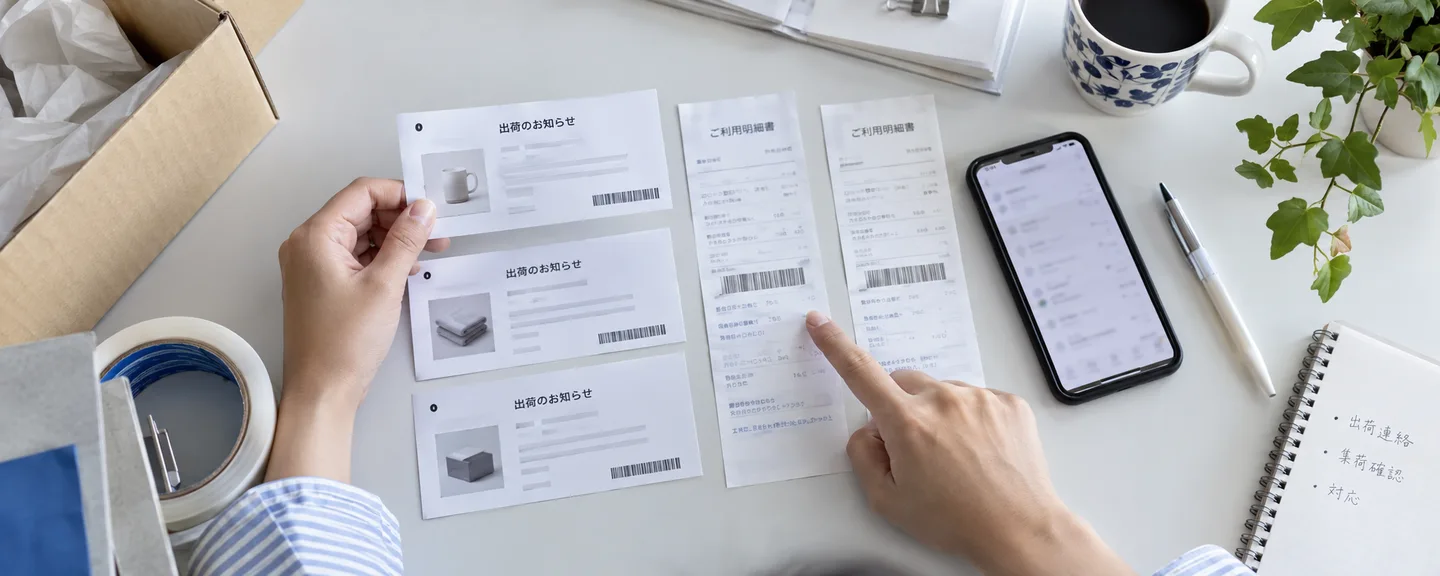
The fastest way to pin down the cause and explain it accurately is to lay out "what happened when" on a single line for each affected order. Set up the following columns in a spreadsheet and fill in what you can.
| Item to record | Main place to check | What to look for |
|---|---|---|
| Order date/time, expected ship date, estimated delivery date | Manage Orders, order reports | Whether the confirmation date falls before or after the expected ship date |
| Packing completed | Your own work records | Whether the person responsible and the time are recorded |
| Handover to the carrier | Pickup or drop-off receipt | A shipping label alone doesn't prove the handover happened |
| Date/time and channel of the shipment confirmation | Shipping info in Manage Orders, the Late Shipment Rate report (times in UTC), an external tool's send log | Whether it was entered manually, sent via Buy Shipping, or sent automatically by a tool |
| Tracking number and carrier | Shipping info in Manage Orders | Whether the number format or the carrier selected is correct |
| First tracking scan and delivery | The carrier's tracking information, the Valid Tracking Rate report | Whether the first tracking scan falls after the confirmation date |
You can download the Late Shipment Rate report from "View Details" > the "Late Shipment Rate" tab under Shipping Performance on the Account Health page. Times are in UTC (Coordinated Universal Time), and Japan Standard Time is 9 hours ahead of UTC. By our calculation, a confirmation sent before 9:00 a.m. Japan time can convert to the previous day's date in UTC, so keep this time difference in mind when comparing against your own internal records.
Classify the cause by the shape of the mismatch
- Confirmation before handover: manually jumping the gun, batch confirmations sent all at once, a delay in handing the package over after buying a shipping label, automatic confirmation from an external tool
- Confirmation sent more than 4 hours after handover: the person responsible for confirming shipment isn't working on a schedule that matches pickup time
- Confirmation sent after the expected ship date: your handling-time setting doesn't match your actual processing capacity
- No confirmation sent at all: you're missing a daily check for unshipped orders
One thing that's easy to overlook is buying a shipping label. If you buy a shipping label through Buy Shipping (マーケットプレイス配送サービス), the order is marked as shipped automatically and tracking information is uploaded at the same time, so if you don't hand the package over right after buying the label, it can be treated as PCSA. For external order- and shipment-management tools as well, which action actually triggers the shipment confirmation differs from product to product.
A mismatch also leaves traces in your reports. Help explains that an order you thought you canceled can still show up on the Valid Tracking Rate (also labeled "Valid Tracking Rate (VTR)" on some pages) report because the shipment confirmation sent before handover already triggered the charge, so the order was processed as a refund instead. When you issue a refund, record the background in the "Seller notes" field (for the seller's own reference) on the refund screen, and keep a matching entry in your internal work records too — it will help you explain things later.

Handling mismatched orders: choose the right steps for your situation
The following organizes Help's guidance by situation.
| Situation | What to do | Points to watch |
|---|---|---|
| Confirmed but not actually shipped, and the buyer wants to cancel | Cancellation isn't possible. Don't ship the item; issue a refund instead | A refund can be started for an order once the shipment confirmation has been sent |
| Confirmed but not actually shipped, and the buyer is waiting for the item | Help gives no clear guidance. Confirm what the buyer wants; if you'll ship it, correct the tracking information to match reality after handover. If they don't want it, issue a refund | Whether you can still edit tracking information generally depends on the estimated delivery date (some pages say it can be edited "until the order is marked delivered"). Check what's actually allowed on the Manage Orders screen. You need to tell the buyer that the shipment will be delayed |
| Already shipped but not yet confirmed | Send the shipment confirmation right away. If the buyer wants to cancel, confirm shipment first, then direct them to refuse delivery or return the item | Send it as soon as you notice. A confirmation sent after the expected ship date still counts as a late shipment |
| Forgot to confirm, and the order was canceled automatically | Can't be reversed. Explain the situation to the buyer, have them place a new order, and confirm shipment using the original tracking number if it was shipped within the past 30 days | Amazon will not re-charge the buyer on your behalf |
| Entered the wrong tracking number or carrier | In Manage Orders, choose "Edit shipment," enter the corrected tracking information, then "Re-confirm shipment" | Do this within 24 hours if possible. It takes about 72 hours to be reflected in your metrics |
| You realize, before confirming shipment, that you can't ship or will be late | Contact the buyer. If you can't ship it, cancel the order and explain why (this counts toward your Cancellation Rate) | Don't ask the buyer to request a cancellation because of a stockout. For orders already confirmed, handle them with a refund as in the row above |
| A buyer files an A-to-z Guarantee claim for non-receipt on a mismatched order | Respond to Amazon's request for information within 48 hours, providing the shipping method, a valid tracking number, the carrier, and proof of delivery | You have 30 calendar days to appeal an approved claim. For a package with no tracking, you can't dispute a "not delivered" claim |
Points to check when correcting tracking information
- Update it at least 5 minutes after the initial entry
- It's generally described as no longer editable once the estimated delivery date has passed (some pages say it "can be corrected until the order is marked delivered," so check what's actually allowed on the Manage Orders screen)
- Enter the tracking number in half-width alphanumeric characters, without hyphens
- Except for some services from Japan's three major carriers, an incorrect number will only trigger a warning and can still be submitted. Being able to submit it doesn't mean the number is correct
How to check your tracking numbers is covered in detail in improving your Valid Tracking Rate and checking your tracking numbers.
Steps for issuing a refund
- In Manage Orders, find the order and select "Refund order"
- On the "Full refund" tab, select the refund reason that matches what actually happened (such as "Unable to ship," "Not shipped by expected ship date," or "Buyer canceled")
- Enter a message to the buyer, record the background in the seller notes, and click "Submit refund"
A manual refund stays "Pending" for up to 2 hours, during which you can cancel it. The effect on your Cancellation Rate is covered in measures against the pre-fulfillment cancel rate.
Contacting the buyer
Because Amazon sends its own shipping notice based on the shipment confirmation, sellers are asked not to send a separate "your item has shipped" confirmation email. A message you initiate should be sent as a "permitted proactive message" for a purpose such as resolving a shipping issue; it must be sent within 30 days of order completion, include the 17-digit order number, and be written in the language the buyer has specified. Below is a sample for a case where you've already confirmed shipment but the actual dispatch will be delayed.
For your order (order number: enter the 17-digit number), we sent the shipping notice ahead of the actual dispatch. The item will actually ship on [Month] [Day]. The tracking information will be updated once it has shipped. We apologize for the delay in delivery. If you no longer need the item, please reply to this message and we will process a refund.

What to explain in a plan of action or appeal
As general guidance for appeals, Amazon lists writing factually and concisely, identifying the root cause behind the violation, and describing the corrective actions you've taken along with their content, dates, and supporting documents. We were unable to confirm whether there's a dedicated appeal screen for PCSA, so follow whatever the notice instructs for submission. Don't stop at "a system glitch" or "the person in charge missed it" — dig down into why your procedure allowed a confirmation to go out before handover in the first place. The following is a hypothetical example meant to show the structure, not a real case.
We had been sending the shipment confirmation for the day's orders in a batch as soon as we printed the shipping labels. Packages that weren't packed in time for pickup were handed over the next business day, which resulted in orders where the confirmation date and the handover date didn't match.
We cross-checked orders from [Month] [Day] through [Month] [Day] against the shipping information in Manage Orders and our pickup receipts, and identified the orders for which the shipment confirmation had been sent before handover. We notified the affected buyers of the actual ship date and corrected the tracking information to match the actual package (orders where the buyer told us they no longer wanted the item have already been refunded).
The root cause was that we had set "printing the shipping label" as our trigger for sending the shipment confirmation, with no step to confirm handover to the carrier.
Starting on [Month] [Day], we changed our procedure to cross-check the receipt we get at pickup against the number of packages, and to send the shipment confirmation only for orders that have actually been handed over. Orders that miss the pickup are confirmed after handover the next business day. We keep the results of this cross-check in our daily shipping records (our procedure document and record template are attached).
Only include dates and attachments for things you actually did. How to structure this kind of plan is covered in how to build a plan of action.
Reviewing your operations: build out the reasons you're tempted to confirm shipment early
Here's a rundown of the situations that tend to lead to jumping the gun, and the direction to take in reviewing each one.
| Situation prone to jumping the gun | Direction for review |
|---|---|
| Same-day shipping for Prime by Seller (マケプレプライム) or fast-delivery programs (orders placed before your cutoff time must ship the same day) | Review how your order cutoff time lines up with your pickup time (Help's guidance to switch to standard delivery is aimed at situations such as natural disasters) |
| Wanting to confirm shipment for everything in a batch before pickup | Confirm shipment for a batch only after you've handed that batch to the carrier |
| Buying a shipping label marks the order shipped | Only buy labels for what you'll actually hand over that day |
| An external tool confirms shipment automatically | Check whether it's configured to send only after handover |
| Order volume exceeds your processing capacity | Set your handling time to match reality, and set an "order limit" |
| Can't ship because of a closure or a disaster | Set your listing status to "Inactive." If pickup is expected to be delayed because of a disaster, extend your handling time |
Setting an "order limit" automatically adds one extra day of handling time to any order that exceeds the number you can process in a day (this doesn't apply to Prime by Seller or fast-delivery program orders). Switching to "Inactive" doesn't automatically cancel orders that are still pending, so you'll need to handle those separately.
Under the Business Solutions Agreement as well, sellers are obligated to ship by the expected ship date and to check order information at least once every business day. Rather than relying solely on order confirmation emails, build the following checks into your daily routine.
What to check during your daily shipping work
- Check Manage Orders or an order report for unshipped orders
- Cross-check your pickup or drop-off receipt against the number of orders you're about to confirm
- Confirm shipment, within 4 hours of pickup, only for the orders you actually handed over
- Check Manage Orders for any automatic-cancellation warnings

What not to do
- Entering a ship date that doesn't match reality, or a tracking number that doesn't correspond to the actual package: This shows the buyer and Amazon information that doesn't match the facts, and risks violating the Seller Code of Conduct's principle of not engaging in misleading conduct. It can also work against you when it comes to your Valid Tracking Rate or an A-to-z Guarantee claim, and a mismatch between your records and your explanation undermines the credibility of your appeal as a whole.
- Asking a buyer to request a cancellation because an item is out of stock: This is prohibited under the Communication Guidelines.
- Creating a separate account to keep selling: Under the Seller Code of Conduct, you may maintain only one Seller Central account per region you sell in, unless you have a legitimate business need and every account is in good standing. Continuing to sell on a separate account to get around a warning or a restriction is not permitted.
Frequently asked questions
Q. I sent a single shipment confirmation before pickup, just once. Will I be suspended right away?
A. A PCSA warning is only triggered when this shows up as a pattern, and an occasional stray confirmation is stated not to result in enforcement action. That said, the buyer's screen already shows the order as shipped, so hand the package over that same day if you can, and if that's not possible, let the buyer know about the delay. If you've already received a notice of suspension or restriction, treat what's written in that notice as taking priority over this general explanation, and check the instructions and deadline it states.
Q. If the mismatch was caused by an external tool's automatic confirmation, is it still the seller's responsibility?
A. The PCSA rule is stated to apply regardless of the channel — whether it's the screen, the API, a feed file, or third-party software. Even if a tool caused it, it's safest to prepare your explanation on the assumption that the fix needs to come from your own operations.
Q. Can I cancel a shipment confirmation I've already sent and revert the order to unshipped?
A. As far as we were able to confirm, Help does not describe such a procedure. What it does cover is correcting the tracking information and issuing a refund.
Q. Does this also apply to FBA orders?
A. PCSA applies to seller-fulfilled (self-shipped) orders, and the Late Shipment Rate likewise applies only to seller-fulfilled orders (sellers enrolled in the Automated Fulfillment Program are excluded for standard orders). If you use both fulfillment methods, review your seller-fulfilled orders specifically.
Summary
Confirming shipment is a single action that switches on the charge, the sale, and what the buyer sees, all at once.
- First determine whether it's "confirmation first" or "dispatch first." The former falls under PCSA, and the latter under late shipments or automatic cancellation, and each calls for a different response
- Lay out the handover time and the confirmation time for each order, adjust for the UTC time difference, and classify the cause
- For each mismatched order, choose whichever fits the situation among issuing a refund, sending the confirmation, correcting the tracking information, and contacting the buyer
- The core of preventing recurrence is aligning both your written procedure and your tool settings around "confirm handover, then confirm shipment"
Rather than papering over things with records that don't match the facts, what matters is explaining based on what actually happened and showing concretely what you've changed in your operations. If you're unsure how to approach your response, consider organizing your records and consulting a specialist early on.
Need help with orders not dispatched after shipment confirmation?
We'll assess your prospects for reinstatement at no cost. We also accept consultations about warnings before a suspension. Consultations are free, as often as you need.
 Free consultation, 24/7
 *This article provides a general explanation. The appropriate response in individual cases depends on the circumstances.
Further reading
 When Amazon disables merchant fulfillment: checking restrictions and reinstatement requirements Read article →
  Improving Amazon's Valid Tracking Rate: carriers, tracking numbers and shipment confirmations Read article →
  Addressing Amazon's pre-fulfillment cancellation rate: inventory and order-processing checks Read article →