You've received a warning saying your product information is inaccurate or that your listing contains inappropriate content, but you can't tell which wording or image is the problem. This article is for sellers in exactly that situation. We walk through how to identify what was flagged, correct it, file an appeal, and prevent it from happening again, along with the rules that underpin each step.
What an "inaccurate or inappropriate content" warning is, and the rules behind it
In this article, we use "inaccurate or inappropriate content warning" to refer to any warning or listing deactivation issued because the information on a product detail page (title, description, specifications, images, and so on) was found to be inaccurate or its wording inappropriate. Notifications aren't worded consistently, and even Amazon's Help pages use different phrasing, such as "listing inaccurate or incomplete product information" and "misleading, inappropriate, or offensive conduct." So the place to start is checking the policy name and the affected item in the notification you actually received.
This article is based on the Help pages and agreement terms as of September 2026. Policies and screen names can change, so please also check the latest Help content and your actual screens.
The main rules involved
| Rule | Key points relating to product information |
|---|---|
| Product detail page rules (商品詳細ページの規則) | Categorize and describe products accurately. Do not include external contact information, pricing or availability, quotes from reviews, promotional wording, or similar content in titles, descriptions, specifications, or images. Attributes that violate the rules may be suppressed from search |
| Prohibited seller activities and actions (出品者の禁止活動および行為、ならびに遵守事項) | List on a page whose manufacturer, edition, version, compatibility, and so on are accurate. Do not manipulate search results with misleading information. Keep reference prices and product description wording appropriate |
| Seller Code of Conduct (出品者行動規範) | Do not engage in misleading, inappropriate, or offensive conduct in your listing information, content, or images |
| Business Solutions Agreement (ビジネスソリューション契約) | Always provide accurate and complete product information and update it as needed. Comply with all applicable laws, including those regulating how products are presented |
According to Help, failing to follow the listing standards may result in your selling privileges being temporarily or permanently removed.
Use the notification and your screens to pin down "which ASIN, which attribute"
If you fix the wrong thing, the problem may remain or you may end up making changes you didn't need to. Before making any corrections, narrow down what was flagged in the following order.
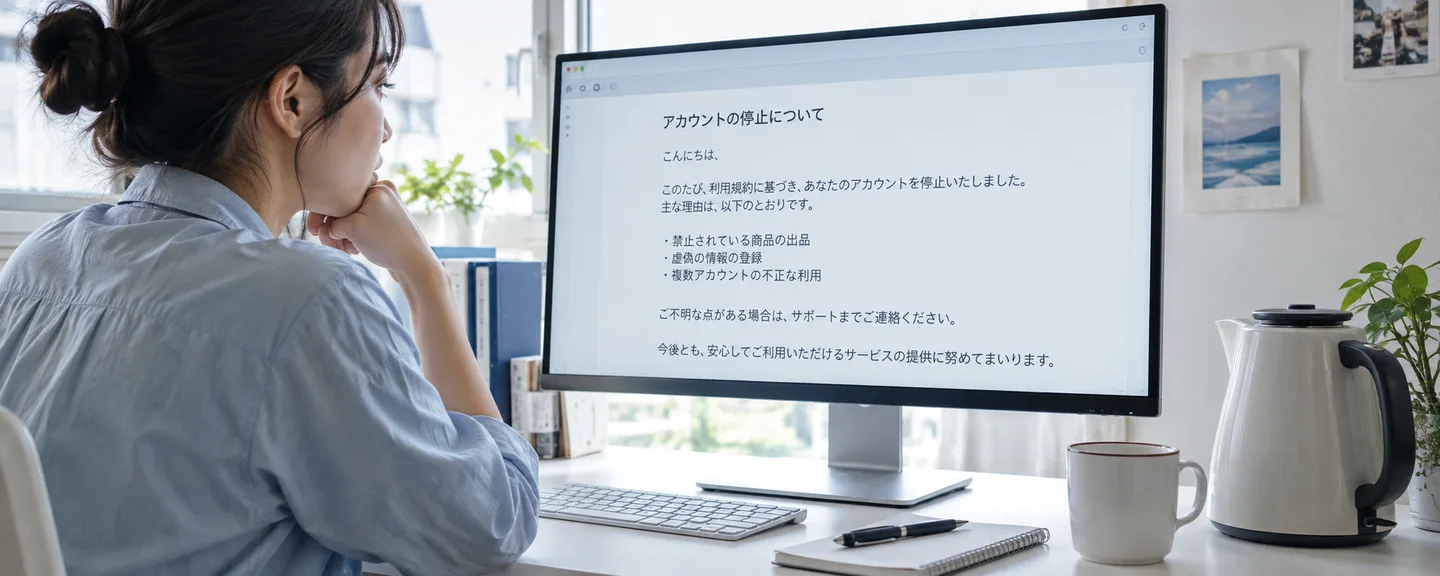
STEP 1. Read the notification email and Performance Notifications
Open the email from Amazon and Performance Notifications (パフォーマンス通知) in Seller Central, and write down the items listed in the box below. Even if you can't identify the attribute, don't rewrite large sections based on guesswork; check the details on the next screen.
STEP 2. Open Product Policy Compliance under Account Health
On the Account Health (アカウント健全性) page, go to Product Policy Compliance (商品規約の遵守) and click "View all" (すべて表示). This shows the history of removed listings and images, their current status, and the next steps for reinstating them. To reinstate a listing, follow the guidance in the "Next steps" (次の手順) column. If you can't find it there, also check the suppressed and inactive listings in your inventory and Manage Your Compliance (コンプライアンスの管理).
STEP 3. Check the severity and the deadline
The Product detail page rules are a policy covered by the Account Health Rating (AHR). Amazon doesn't publish a full table mapping violations to severity levels, but it gives listings containing links that direct customers to external websites as an example of "Medium" severity, and manipulating search results or sales rankings as an example of "Critical." A Critical violation drops your score to 0, and you have a three-day window before suspension. For details, see how to check your Account Health score.
What to write down first
- The date, subject line, and policy name of the notification
- The affected ASIN/SKU and product name
- The attribute that was flagged (title, images, keywords, etc.)
- The guidance in "Next steps" and any deadline
- The severity, and whether there is a repeat violation label
- How the product page currently appears (screenshots)
Separate the shared product page from your own offer
According to Help, a product detail page doesn't belong to any one seller. Only information about the product itself should go in the title, images, and description, while shipping charges, sale prices, and promotions are set in Seller Central. Start by working out whether the problematic information is "information about the product itself" or "terms specific to your own offer."
| Category | Main attributes | What to check |
|---|---|---|
| Shared product information | Title, product highlights, description, specifications, images, variations, brand name | Does it match the actual product and the manufacturer's information? Has any seller-specific information crept in? |
| Offer-specific information | Price, condition, shipping settings | Are you entering these as part of creating your offer? Have you written them on the product page instead? |
| What you actually deliver | The product you ship and any included items | Are you sending anything not described on the page? |
How to describe condition is covered in how to review your new and used condition settings.
Next, check whether the information being displayed matches what you submitted. What appears on a given page is compiled automatically from information provided by multiple sellers, and for brand-registered ASINs, the brand owner's information takes priority. According to Help, approved information appears within 48 hours, and if it doesn't appear, information from a different contributor has been used.
Technical Support can't edit information on a brand-registered ASIN that was provided by an approved user. If that information is wrong, Help directs you to submit details through "Account Health - Report a violation" (アカウント健全性 - 不正または違反を報告) or to contact the brand's administrator. Amazon doesn't disclose who contributed the information, so focus on presenting the correct information and the evidence that supports it.
Attribute-by-attribute checklist: what not to put where
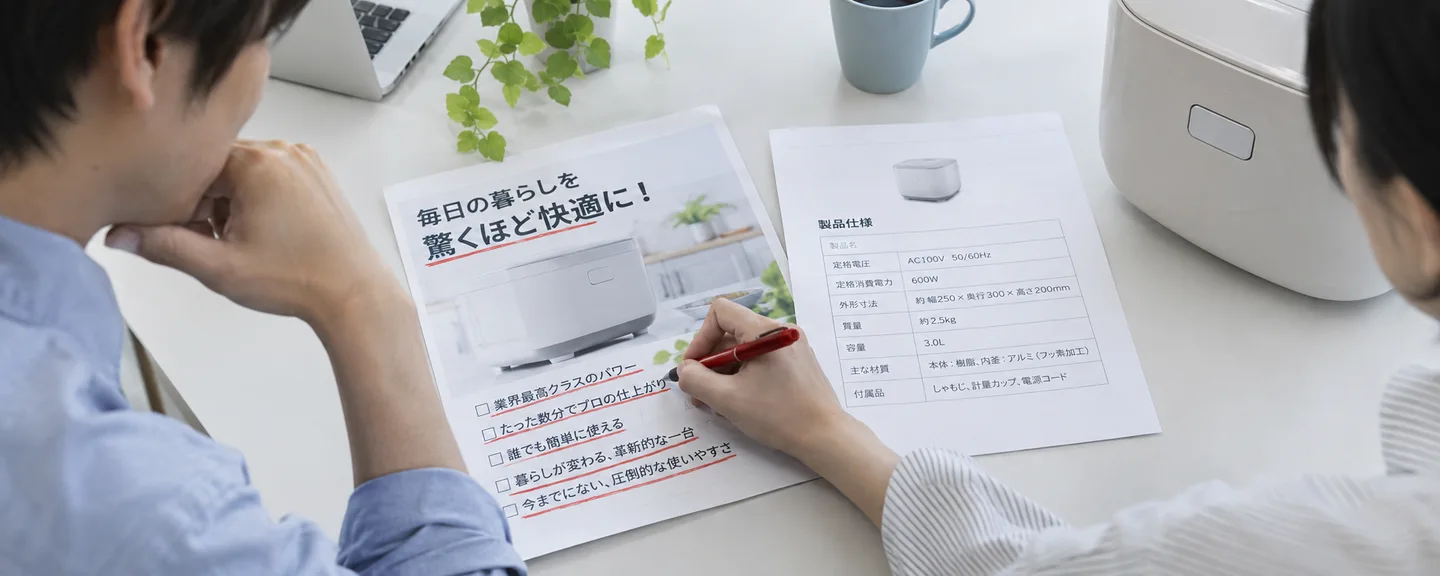
Based on what Help says, we've organized the main points to check for each attribute.
| Attribute | Main points to check |
|---|---|
| Title | For non-media products, 75 characters or fewer, including spaces. No promotional wording such as "X% off" or "free shipping," no seller name, and no URLs. Don't use symbols (! * $ ?) or emoji at the start of words. Use Arabic numerals |
| Description and specifications | Don't include phone numbers, email addresses, social media handles, URLs, links directing customers to other sites, pricing, availability or condition, reviews or quotes, sales rankings, or time-limited information |
| Images | The main image must have a pure white background, show only the product for sale (including any included items), and contain no text, logos, or graphics. Every image must accurately represent the actual product and must not include watermarks, URLs, seller-specific information, reviews or star ratings, wording such as "free shipping," Amazon logos, or badges such as "Best Seller" |
| Search keywords | Don't include irrelevant or misleading terms. Even for your own products, don't add brand names, product names, ASINs, and the like to the hidden keyword fields |
| Brand name and product codes | Don't change or add to the brand name or manufacturer name on an existing ASIN. Don't list false identifying information (including UPC codes and release dates). Don't display trademarks on unbranded (generic) products |
| Reference price | Use only prices that meet the requirements, such as the manufacturer's suggested retail price. Past or future selling prices are not allowed |
| Variations | Don't group different products, different brands, different product lines, or items of different product types under the same parent |
| Wording and formatting (all attributes) | No provocative, discriminatory, or obscene language, and no spoilers for books, music, or video. Don't use HTML, JavaScript, or other code (except line-break tags in product descriptions). On Amazon.co.jp, list in Japanese (except for foreign-language books) |
Also check that wording such as "#1 in rankings" hasn't been carried over from copy written for promotional purposes. If you've been flagged for manipulating sales rankings or search results, see also how to respond to a sales ranking manipulation warning.
Titles limited to 75 characters from July 27, 2026
According to the Help page "Program policy changes" (プログラムポリシーの変更), from July 27, 2026, the title limit for all product types except media changed from 200 characters to 75, and a new attribute, "Product highlights" (商品ハイライト, up to 125 characters including spaces), was introduced. Take stock in Manage All Inventory (全在庫の管理) to make sure no long titles created under the old standard remain.

Easy-to-miss points with images
The Help page "Selling on Amazon" (Amazon出品サービス) lists requirements such as a pure white background (RGB 255,255,255), at least 1,600 pixels on the longest side, and the product filling at least 85% of the image. Meanwhile, the "Product image guide" (商品画像のガイド) says images must be at least 500 pixels on the longest side, with 1,000 pixels or more recommended, and that the white background and 85% figure are requirements for the main image. Because the figures differ from page to page, preparing images at 1,600 pixels or more on the longest side (the higher of the two figures) meets the size figures given on both pages. Then check the latest Product image guide and the guidelines for your category.
When you create listings one at a time with the "Add a Product" (商品を登録) tool, Amazon automatically checks the main image for a "non-white background" or "text, logos, graphics, or watermarks." However, Help notes that this check-and-fix process covers only these two types of defects, and listings may still be suppressed for other defects. It may also not appear in some marketplaces, so not being flagged doesn't necessarily mean you meet the other requirements.
Making sure your wording complies with the law is the seller's responsibility
Help states that wording in product descriptions and advertising must be appropriate and in line with laws and guidelines, and that the responsibility for checking and complying lies with the seller. It also refers to Japan's Act against Unjustifiable Premiums and Misleading Representations, noting that, for example, reducing the quantity of a product while keeping the previous price and advertising the removed portion as "free" may constitute a misleading representation about advantageous terms. For regulated products, Amazon recommends consulting legal counsel, so if you're unsure about any wording, check with a lawyer or the relevant government agency before publishing it. For claims about the efficacy or effects of products such as cosmetics and health foods, also check the Help page "Prohibited product advertising and promotional wording" (禁止されている商品広告・宣伝文言).
How to make corrections: from identifying affected listings to confirming the display
STEP 1. Identify all listings with the same cause
Even if you fix only the flagged ASIN, you may be flagged again if the same wording remains in other listings created from the same template. Search the files you used for listing and your product records for the problematic wording (contact details, promotional wording, and so on), and make a list of the affected listings. Help also advises that if there are multiple SKUs on the same ASIN, you should update the attribute values for every SKU, and if you sell in multiple stores, you should update the information in each store so it's consistent.
STEP 2. Gather documentation to support the correction
According to Help, when you ask Technical Support to correct an attribute, the following three types of evidence are accepted.
- The URL of the manufacturer's website (the publisher's, for books) that clearly shows the proposed change and the product code (UPC, EAN, ISBN, etc.)
- A high-resolution image of the product showing the proposed change and the product code
- A high-resolution image of the original packaging showing the product code and the attribute that needs to be changed
For requests to update product images, the only accepted evidence is the URL of the manufacturer's (or publisher's) website, and requests without valid evidence are not accepted.
STEP 3. Correct listings one at a time or in bulk
To fix listings one at a time, open "Edit listing" (出品情報の編集) from Manage All Inventory, make your corrections in the "Product details" (商品の詳細), "Images" (画像), and "Variations" (バリエーション) tabs, and click "Save" (保存). Some attributes are locked after creation and can't be changed. When updating the title or other attributes, make sure the content matches the original product ID to avoid error 8541. If you have a large number of listings, use a spreadsheet via "Catalog" (カタログ) > "Add Products via Upload" (アップロードによる一括商品登録). Listings created with a multi-marketplace template require the same type of template when you update them.
STEP 4. Contact Technical Support about attributes you can't fix yourself
If the brand name or manufacturer name on an existing ASIN is wrong, don't change the original ASIN; instead, contact Technical Support and include all of your evidence. Product codes also generally can't be edited after creation. For how to present your case, see how to organize your inquiry to Technical Support.
You may edit an existing page only when a more appropriate or more accurate description is needed. Changing or adding to an ASIN's title, brand name, or manufacturer name is generally prohibited, but updates that include removing content that violates policy are an exception. If you've changed only the packaging color, design, or materials, you don't need a new ASIN. On the other hand, if the product has become significantly different because of changes to its color, size, materials, features, or the like, or if the brand has changed, you need a new ASIN. When the line is hard to draw, check with Technical Support. If there are duplicate pages, see how to resolve duplicate ASINs, and for miscategorization, see how to correct a product category.
STEP 5. Confirm how the page appears after the change and keep a record
After saving, check how the product page appears, and record screenshots from before and after the change, the date and time of the correction, and who made it. According to Help, when you remove disallowed text from an attribute that was suppressed from search because of a violation and update it, the attribute is validated and then displayed again. If it still doesn't appear, recheck the status and next steps in Product Policy Compliance.
Deleting isn't the end of it: appeals and your violation record
Help explains that closing a listing or removing it from your inventory does not remove the violation from your Account Health page. A violation is removed when, for example, a dispute confirms it was issued in error, a reconsideration results in a determination that it was unintentional and should be excused, you've taken the required corrective action, or 180 days have passed since it was added. However, if your account has been suspended because of your AHR, the violations remain even after 180 days have passed.
Even a violation removed through an approved reconsideration may still count toward the 180-day repeat violation limit if you did not dispute that the violation occurred. Eliminating the underlying cause is essential.
When to use a reconsideration and when to use a dispute
| Item | Reconsideration (申し立て) | Dispute (異議申し立て) |
|---|---|---|
| What you're arguing | A violation occurred, but it was unintentional and should be dismissed | Amazon's determination is wrong |
| When it fits | There really was an error as flagged, such as promotional wording or contact details left in the listing | The information matches the actual product and the manufacturer's information, so the warning doesn't apply |
| What to prepare | A record of what you corrected, the cause, and your prevention measures | Documentation showing the determination is wrong (the URL of the manufacturer's official website showing the product code and the relevant information, images of the product or packaging showing the product code, etc.) |
The process is to check the affected item on the Account Health page, then either submit a reconsideration or correct the listing as instructed, and wait for an email with the review result. A Help page that mainly covers product condition violations states that a plan of action (パフォーマンス改善計画) is not accepted for that type of appeal. Help doesn't say explicitly whether the same applies to product information violations, so follow the options and guidance shown on the appeal screen.
Sample explanation
In input fields that don't ask for a plan of action format, briefly summarize what was flagged, the cause, what you corrected, and how you'll prevent it from happening again. The following is a sample for a case where you were flagged for leaving promotional wording and external contact details in a product description. It's a hypothetical example, not a real case, so replace the details with your own facts.
The product description for the flagged ASIN included promotional wording such as "limited time only" and "free shipping," as well as our company's URL for inquiries. The cause was that we had no step for checking product description drafts against the list of prohibited wording when writing them.
We removed the wording and URL in question, and also reviewed and corrected every other listing that used the same text.
Going forward, whenever product information is added or changed, a staff member other than the author will check it against the list of prohibited wording, and we will keep a record of each check.
If your account itself has been suspended, appeal through "Reactivate your selling account" (出品用アカウントの再開) at the top of the Account Health page. We explain the overall process in an overview of the path from account suspension to reinstatement. If you're asked to explain the cause, corrective actions, and prevention measures, see also how to put together a plan of action.
What not to do
- Altering evidence images or documents: Documents that don't reflect the facts count as deceptive activity and may lead to suspension regardless of your score.
- Simply deleting the listing and leaving it at that: The violation stays on your record, and if other listings contain the same wording, the problem will recur.
- Continuing to sell through a different account: Under the Seller Code of Conduct, you may have only one selling account for each region where you sell, unless you have a legitimate business reason and all of your accounts are in good standing. Using a different account to avoid warnings or suspension may be viewed as an attempt to circumvent Amazon's systems and could result in suspension regardless of your score.
- Publishing AI improvement suggestions as-is: AI suggestions from "Show improvements" (改善内容を表示) on the edit screen may include features or wording not in the original information, and the seller is responsible for verifying their accuracy.
- Including items not described on the page: Shipping products that aren't described is prohibited, and inserting promotional materials in packaging is also listed among the things you must not do.
Operating practices to prevent recurrence: supporting documentation and pre-publication checks
Create a "supporting documents folder" for each ASIN
So that you can explain later why your product information is correct, keep your documentation organized by ASIN.
What to keep in your supporting documents folder
- The URL of the relevant page on the manufacturer's (or publisher's) official website
- Photos of the product and its original packaging showing the product code
- Drafts of the title, description, and specifications you submitted, along with their sources
- Screenshots from before and after each change, the date and time, and who made it
- Records of your correspondence with Technical Support and of your appeals

Pre-publication checks and regular reviews
Before publishing, have a staff member other than the author compare any text against your supporting documents, including text written by contractors, tools, or AI. Use the "Attribute-by-attribute checklist" above as your internal checksheet for this comparison, and record the reviewer's name and the date.
Issues such as "listing inaccurate or incomplete product information" can reportedly be reported with the "Report Infringement" (権利侵害を報告する) tool even if you aren't the rights owner. Because third parties may report problems before you notice them yourself, set a fixed schedule, such as once a month, to review your own product pages, and when a model changes, also check whether a new ASIN is needed.
Frequently asked questions
Q. I received a warning even though the problem seems to come from another seller's information.
A. What's displayed is selected from information supplied by multiple contributors, so start by comparing what you submitted with the attribute named in the notification. If what's displayed differs from the actual product, request a correction with supporting evidence, and if you believe the determination is wrong, consider filing a dispute.
Q. A violation shows "No impact." Do I need to do anything?
A. It doesn't currently affect your AHR, but Amazon recommends addressing it. Listings with the same cause could also lead to other violations, so fix it sooner rather than later.
Q. If I make the correction, will my listing be reinstated right away?
A. Help doesn't specify how long the review takes, and in some cases an appeal is required. Check the next steps in Product Policy Compliance.
Q. What happens if I'm flagged for the same kind of issue repeatedly?
A. According to Help, if violations of the same policy reach the limit within 180 days, your account may be suspended immediately. Repeat violations are shown with a label in the impact column of Product Policy Compliance, so it's important to fix all listings with the same cause together.
Summary
An inaccurate or inappropriate content warning comes down to whether the information on the shared product page is accurate and whether it contains anything that isn't allowed.
- Use the notification and Product Policy Compliance to identify the affected ASIN, attribute, next steps, and deadline
- Separate shared product information from your offer-specific terms, and check whether what's displayed matches what you submitted
- Identify all listings with the same cause, and correct them based on supporting documentation
- Deleting a listing doesn't remove the violation. Choose a reconsideration or a dispute based on the facts
- Prevent recurrence with a supporting documents folder and pre-publication checks
Especially when you can't tell what the problem is, it's important to organize the facts and evidence before rewriting anything based on guesswork. If you're unsure how to proceed, consider consulting a specialist.
Need help with a suspension for inappropriate content?
We'll assess your prospects for reinstatement at no cost. Consultations are free, as often as you need.
 Free consultation, 24/7
 *This article provides a general explanation. The appropriate response in individual cases depends on the circumstances.