For sellers whose selling account was suspended because it is believed to be related to another account, but who have no idea who that other account belongs to, this article lays out a step-by-step way to check each possible point of connection and turn what you find into a written explanation. For an overview of how to respond overall, see sorting out a related-account finding and preparing your appeal.
The starting point: rules, and what Amazon hasn't disclosed
This article is based on Seller Central Help content, the Amazon Services Business Solutions Agreement (BSA), and Amazon staff replies on the Seller Forums that we were able to confirm as of September 2026. Policies and on-screen labels can change, so please also check the latest Help content.
Amazon's Help page "Prohibited seller activities and actions, and compliance requirements" (出品者の禁止活動および行為、ならびに遵守事項) states that, except where there is a legitimate reason, sellers may keep only one Seller Central account per region in which they sell, and that if one account has a problem, all of a seller's selling accounts may be suspended. When your account has been flagged as related to another, this rule means that a problem with the other account, or a finding that it is a "second account without a legitimate reason," may be the reason your own account was caught up as well (Amazon does not explain this individually for each case). The article linked above covers this rule in full.
At the same time, Amazon has not disclosed which information it uses to determine that accounts are related. Amazon's Privacy Notice states that it collects information such as IP addresses and device data and uses it to help prevent fraud, but it does not say what is used to link accounts, so claims like "it's because you used the same Wi-Fi" are not backed by any official explanation. Section 3 of the BSA also includes exceptions under which Amazon need not disclose the reason for a suspension, such as where doing so would interfere with an investigation or with fraud prevention. Given that, this article's goal is to check each possible point of connection one at a time and be ready to explain what you checked and what you found.
Write down what the notice and your screens tell you
Before you go looking for points of connection, accurately copy down the information you already have. Check the email sent to your registered email address, the Account Health (アカウント健全性) page, and Performance Notifications (パフォーマンス通知).
The exact wording of these notices varies over time. In a notice reposted on the Seller Forums in 2026, the related account was described only as "beginning with ●●" (it's unclear whether the ●● was the poster's own redaction or part of the notice itself). Use the actual wording of the notice you received as your reference.
What to copy down from the notice
- Date and time received, subject line, and the affected store
- The exact wording given as the reason for suspension (copy it verbatim, don't paraphrase)
- The related account's name or any partial ID, exactly as shown, if given
- What information or documents are requested, and how to submit them
- Any instructions about funds or unshipped orders
If part of the related account's name or ID is shown, compare it against store names you've used in the past (including overseas), business partners, suppliers, and contractors, previous employers, businesses run by family or acquaintances, and the providers of any tools you use. Because you often can't tell what part of a name or ID it is, even when you find a match or similarity, record it in the relevant category of your inventory table only as the fact that "the name is similar" — don't treat it as confirmation. If the notice gives no clue at all, say so in your summary.
This written record becomes the foundation for the summary section of your explanation. For more on how to read the notice, see from suspension to filing your appeal.

Your inventory of connections: six categories and where to check
The less familiar the alleged connection feels, the more useful it is to work through a checklist. Sort possible points of connection into six categories, each matched to where to check and what record to keep.
| Category | Examples to check | Where to check | Record to keep |
|---|---|---|---|
| ① Another account of your own | An account in another region; an account you started registering but never finished | The Store Switcher (ストアスイッチャー), the Account Selector (アカウントセレクター), your list of Global Selling accounts | A screenshot of the list; when and how each account was registered |
| ② Registration details | Address, phone number, email, bank account, billing card. Other businesses that use the same address (shared office, virtual office, a family member's business) | Settings (設定) → Account Info (アカウント情報) | A copy of your registered details; the date and reason for any changes |
| ③ People | Employees, business partners, family members | User Permissions (ユーザー権限) → Manage Your User Permissions (従業員の管理) | A list of users; the dates access was granted or removed |
| ④ Outside providers | Agencies, consultants, logistics or freight-forwarding companies | Manage Apps & Services (サービスの管理) under User Permissions; your own contracts | Contracts; the scope of the work; records of when access was authorized or removed |
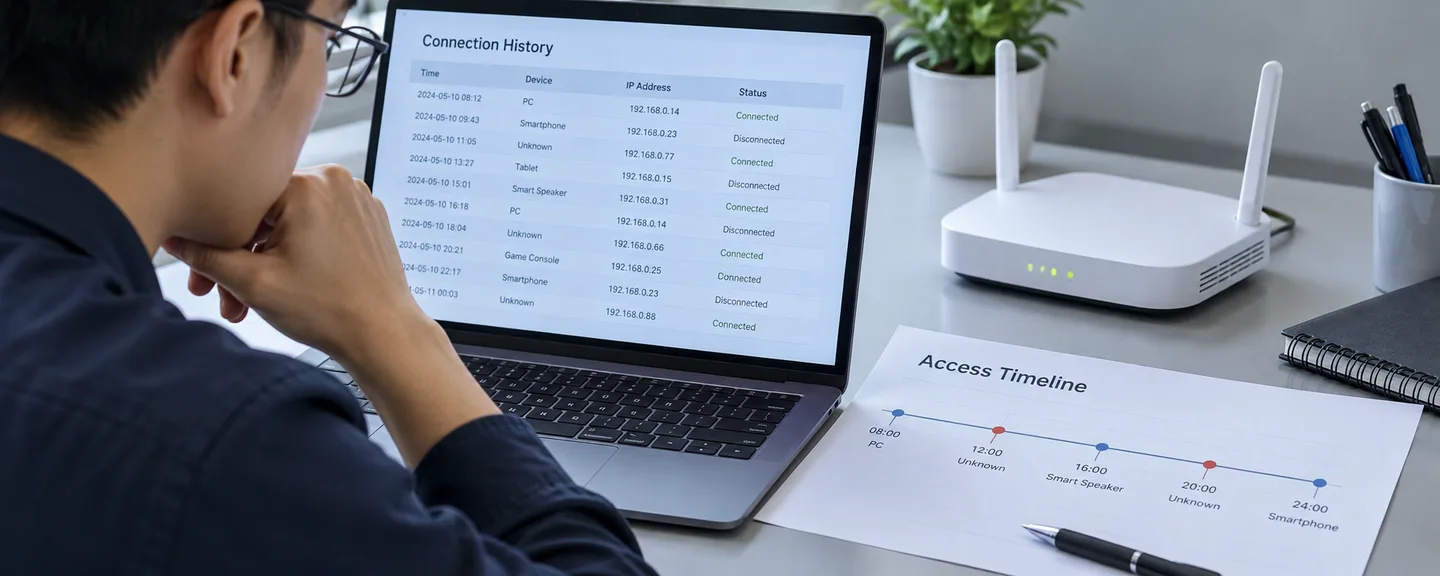
| ⑤ Login environment | Shared login credentials, shared devices | Settings (設定) → Login Settings (ログイン設定), User Permissions; your own records of devices and logins | How login credentials are managed; a list of devices used |
| ⑥ Business relationships | Affiliated companies, a business you took over | Your own corporate registration, contracts, and investment records | Documents showing whether a relationship exists and how it came about |
For each row, note one of three outcomes — "a legitimate relationship," "a management gap," or "nothing found" — plus the date you checked and which screen or document you used. Because Amazon's criteria are not disclosed, as noted above, this table serves as a record of "how far you checked," not proof of the cause.
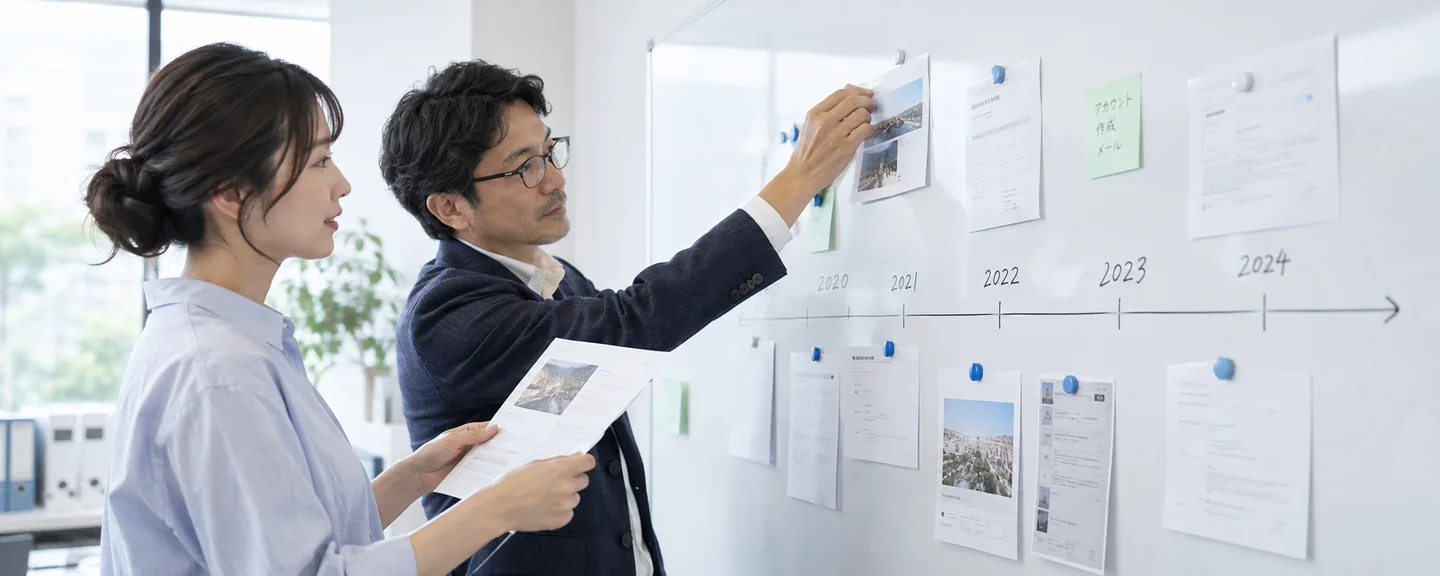
Listing, in date order, what changed in the months before the suspension — a change of address, bank account, or phone number; adding an employee or outside provider; registering overseas; replacing a device, and so on — makes it easier to decide what to check first. It does not, however, establish the cause.
The easiest one to miss: ① another account of your own
Start your inventory with category ①. Even if you're sure you have no other account, Amazon's own systems sometimes link your accounts to each other through an entirely legitimate mechanism. According to Help, completing registration for a selling account in another region links it to your original account, and the registration form may even auto-fill some of your previous account's details.
STEP 1. Check the display at the top and top-left of the screen
Any accounts you've already merged appear in the Store Switcher (ストアスイッチャー) at the top of the screen. The Account Selector (アカウントセレクター) — the site dropdown in the top-left corner — only appears if you manage more than one site or store. Within North America (for example, the US and Mexico), you may be able to sell in an existing account for the whole region, so a store you didn't expect can show up here. Check the history of any store you don't recognize.
STEP 2. Open your list of Global Selling accounts
Use your list of Global Selling accounts, linked from the Help page "Closing Your Selling Account" (出品用アカウントの解約), to check whether any account remains outside Japan, and save a screenshot of the page. Also check the Merge Accounts (アカウントの統合) tab under Inventory (在庫) → Global Selling (グローバルセリング). Help states explicitly that only the account owner should merge accounts — not an outside company or agency — and merging cannot be undone, so if you had a provider handle any of this for you, confirm who did what, and when.
STEP 3. Check the status of any account you find
On the Seller Forums in 2026, when a seller raised a case that appeared to involve a suspended account in another country, Amazon staff advised that, in most such cases, the original account needs to be reinstated first and the Japan steps handled afterward, and directed the seller to open a case from the original account. Another staff member noted that it can take a few days for a reinstatement of an overseas related account to take effect, and advised reporting the recovery on the Japan marketplace once it's confirmed. Neither is a guaranteed outcome, but it matters that you don't try to resolve this on the Japan screens alone. See also reinstating an account on Amazon overseas and revisiting an old suspended account.
Avoid rushing to close any account you find. There is no official basis for the idea that closing an account resolves the linkage, and a closed account cannot be reactivated.
Working through categories ②–⑥ in table order
Account Info (② registration details)
Under Settings (設定) → Account Info (アカウント情報), check whether your store name, email, phone number, bank account, billing credit card, and company or return address actually match reality. Also look for anything still shared with another person or business — an old address, a family member's or former employee's phone number, an account or card in someone else's name. Amazon's identity-verification Help requires genuine, unaltered documents that match your registered information. For documents requested after a suspension, prioritize whatever type and format the notice specifies, and also check them against your registered details for any mismatch. For preparation, see preparing additional identity-verification documents.
User Permissions (③ people)
Under Settings (設定) → User Permissions (ユーザー権限) → Manage Your User Permissions (従業員の管理), check who has access (this feature is available only to Professional sellers). An employee's access remains in place indefinitely until you remove it, so check for anyone who has left or who helped out only temporarily. Help states plainly that you must not share your login credentials with anyone, and that the seller is responsible for the actions of any user they add. Remove anyone who no longer needs access using "Remove User" (ユーザーを削除), and record before-and-after screenshots along with the date.
Service providers (④ outside providers)
Third parties outside your own organization — agencies, consultants, and similar — are called "service providers" (サービスプロバイダー) in Help. You authorize them either through an approval link the provider shares with you or through the Service Provider Network (SPN, サービスプロバイダーネットワーク), and access lasts 365 days (you can re-authorize before it expires). This is managed under Settings (設定) → User Permissions (ユーザー権限) → Manage Apps & Services (サービスの管理) (/apps/authorize/global/manage). Never hand your login credentials to an unregistered provider — check with Support beforehand about the proper way to grant access. If you'd added a provider as an employee instead, or had shared login credentials with one, record that fact as well. Removing access takes effect immediately, but it does not end your contract with the provider, and removal itself cannot be undone.
Some sellers on the Forums have speculated about a logistics company being the cause, but there is no official explanation stating that an outside provider is the source of a related-account finding. Limit yourself to stating, as fact, the scope of work you outsourced and how access was granted.
Login Settings and two-step verification (⑤ login environment)
For an account registered some time ago, the login may still be the same one you use for your own purchases. Check your current email address under Settings (設定) → Login Settings (ログイン設定), and see whether it's shared with a family member or another business. Help recommends a separate login for each person who uses the account, and Section 16 of the BSA also prohibits disclosing your password to anyone other than someone you've authorized to use the account. If you did share it, record the period and who it was shared with, honestly.
Two-step verification is required to access Seller Central, and if you sign in with the same credentials you use for purchases, that one setup protects both accounts. If each user has a separate login, set it up for each of them. Check whether the phone number that receives your verification code, or the device with your authenticator app, still belongs to a family member, a former employee, or a provider, and record the date if you change it. Also make a list of who uses which computer or smartphone to log in, and from where. Whether devices or network environments are actually used in the linking determination is not disclosed. This record, too, exists to back up your explanation.
If there's a chance a third party used your information, follow the Help page "Keeping Your Selling Account Information Secure" (出品アカウントの情報を安全に保つ): change your password, check Payment Information (支払い情報) and User Permissions (ユーザー権限) for any changes you don't recognize, and report it to Technical Support.
Business relationships and family (⑥)
The BSA's definition of "Service User" (サービス利用者) includes the applicant's affiliates. How this factors into a linking determination isn't clear, but if an affiliated company sells separately, be ready to explain the ownership relationship and how independently each business operates. Because selling accounts cannot be transferred, also check the history of any business or account you took over. We found no official statement addressing how a family member or someone you live with selling separately is treated, so organize the facts showing that the account name, bank account, inventory, and operations are independent, and check with Support as needed.
Turning what you found into a written explanation
Sort the results of your inventory into three groups. What you should focus on explaining differs by group.
| Result | What to focus your explanation on | Supporting documents to attach |
|---|---|---|
| (a) A connection exists and it's a legitimate relationship | Who the other party is, what the relationship is, and why it's legitimate | Contracts, approval records, the history of how the account was registered |
| (b) A connection exists and there was a management gap | What the problem was, when you corrected it, and how you'll prevent it | A screenshot showing access removed, your updated settings, your internal rules |
| (c) Nothing found despite checking | What you checked, how, what you found, and what remains unclear | Your inventory table, saved screenshots of each screen, documents matching your registered details |
If you have another account of your own in the same region and it doesn't fall under a legitimate reason (such as independently running multiple brands), treat it as case (b) and show, without concealing anything, when and how it was registered. Don't decide on your own to close your original account or the account you just found; follow the instructions in the notice and the guidance from Account Health Support.
For case (c), it's important not to fill in what you don't know with guesswork. Rather than flatly stating "there is absolutely no connection," writing "I checked this scope using this method and found no connection" gives you an explanation that can actually be verified. If your case includes (b), line up the cause, the corrective action, and how you'll prevent it from recurring; see how to build a plan of action for guidance.
How to structure your document, and the basic principles
- Summary: the date of the notice, what it alleged, and which of (a) through (c) applies to your findings
- List of items checked: for each of the six categories, the screen or document you checked, the date, and the result
- Index of evidence: list each item with a number, its content, and what it shows — for example, "Exhibit 1: screenshot of the Global Selling account list (showing whether any account is registered in another region)"
- Ongoing management rules: how you'll manage permissions, logins, and registration details, and how often you'll review them
Help's "Answering the Reinstatement Questionnaire to Restore Your Selling Privileges" (出品権限を回復するために申し立ての質問書に回答する) offers guidance such as: write clearly, concisely, and specifically based on the facts; don't include information about other cases or emotional language; show the action you took along with the date and supporting document; and circle or highlight the important parts. There's no published official form or list of proof documents specific to related-account cases, so prioritize whatever the notice actually asks for, and avoid attaching large volumes of loosely related material.
A sample explanation
Below is a sample explanation for a case that involves a mix of (a) through (c). This is a hypothetical example, not a real case, so rewrite it to match what you actually confirmed.
This explains the notice dated [Month] [Day], which suspended our account on the basis of a relationship with another account. Because we have no knowledge of the account identified, we checked the following:
1. Accounts in other regions: We confirmed, using our list of Global Selling accounts and the Store Switcher, that we have no account outside Japan (Exhibit 1).
2. User Permissions: We found that a former employee who left last year still had access, and removed it on [Month] [Day]. We have not been able to confirm whether this is connected to the account identified in the notice (Exhibit 2).
3. Outside providers: Our contracted logistics company has access only within the scope authorized as a service provider, and we have not shared our login credentials with them (Exhibit 3).
Within this scope, we found no connection to the account identified in the notice. Going forward, we will issue a separate login for each user, remove access on the same day an employee leaves or a contract ends, and review the list of users every month.
How to submit your appeal, and where to get help
Submit your appeal from "Reactivate Your Selling Account" (出品用アカウントの再開) at the top of the Account Health (アカウント健全性) page: follow the instructions, submit your response and any documents, and select "Submit." Amazon states you can expect a response within roughly two days, but that is not an estimate of when you'll be reinstated. Submit any additional information requested from "View Account Health Requests" (アカウント健全性の要請を見る).
If you've already submitted everything requested, Amazon staff on the Forums suggest considering a contact through the [Contact Us] (お問い合わせ) button on the Account Health dashboard. Professional sellers can request a phone call from there; Individual sellers are directed to Help, Seller University (Amazon出品大学), and the Seller Forums. We cover what to prepare beforehand in preparing before you contact Account Health Support.
If Amazon determines there's a risk, funds from a suspended account are, as a rule, held for 90 days, and the hold can be extended if the risk continues or an investigation is still needed. If Amazon determines the account was used for a purpose such as a policy violation, the funds are held until it's confirmed that no problematic activity occurred. When you'll be paid is never guaranteed, so also see checking your funds after a suspension.
Disclosure of the reason for a suspension is also addressed under Japan's Act on Improving Transparency and Fairness of Specified Digital Platforms (取引透明化法, formally 特定デジタルプラットフォームの透明性及び公正性の向上に関する法律), so if you have questions, consult a lawyer, or the Ministry of Economy, Trade and Industry's commissioned "Digital Platform Transaction Consultation Desk" (デジタルプラットフォーム取引相談窓口, for businesses using online malls) — it's free and does not provide mediation or arbitration.
What not to do, and rules for managing this going forward
- Opening a new account while suspended: This violates the one-account-per-region principle, and Amazon staff have said it can make your situation worse. Registering an account you actually operate under a family member's or acquaintance's name amounts to the same thing, and it may also count as registering false information.
- Taking over an account, or lending or borrowing an account name: Selling accounts cannot be transferred.
- Altering documents: Tampering — rewriting a date, name, or amount, compositing images, or deleting part of a document — does not meet Amazon's requirements and also amounts to submitting false information. Submit identity-verification documents without any alteration, and if you highlight an important part, keep the original text legible.
- Flatly asserting "there is no connection" based on guesswork: If a connection is found later, it can undermine the credibility of your entire explanation.
- Resubmitting the same explanation repeatedly: If it's rejected, check the notice or Support to see what was missing before you revise it.
Sample management rules to include at the end of your explanation
- Issue a separate login for each user, and never share passwords
- Remove access from Manage Your User Permissions (従業員の管理) or Manage Apps & Services (サービスの管理) on the same day an employee leaves or a contract ends, and record the date
- Authorize outside providers through an approval link they share, or through the Service Provider Network (SPN), and decide whether to renew when the 365-day term comes up. Never hand login credentials to an unregistered provider, and check the proper method with Support
- Have the account owner personally handle any account merge or registration in another region, and record the date and purpose
- Review the details registered under Account Info (アカウント情報) once a month
Spell out your management rules down to who checks what and when, write down only what you can actually keep doing, and keep a record that you're following through.

Frequently asked questions
Q. Can Amazon tell me which account mine has been linked to?
A. We found no official statement saying Amazon will disclose detailed information about the other account. It's fine to ask, but don't pause your preparation on the assumption you'll be told — keep working through the inventory of what you can check yourself.
Q. My Account Health Rating was green (healthy), but my account was still suspended.
A. Amazon states that, regardless of your Account Health Rating (AHR) score, it may suspend an account immediately where required by law or where fraud or similar conduct is suspected, and that it may also suspend an account for violating a policy not covered by the AHR. Follow the instructions in your notice.
Q. The name of the related account looks similar to one of our business partners. Should I mention that in my explanation?
A. A similar name alone doesn't confirm it's the same party. Write up the fact of the similarity separately from your actual relationship with that business partner (the terms of your contract, and whether you've shared user permissions or login credentials), and attach the records you used to check.
Q. There's a screen I can't open, or a document I can't obtain.
A. For anything you couldn't confirm, record the date you tried and the reason in your inventory table, and list it under "what remains unclear" in your explanation. Go ahead with whatever you can check, and mention the rest when you consult Account Health Support.
Summary
When you're flagged for a connection you don't recognize, Amazon may disclose neither its criteria nor details about the other account, so the core of your explanation should be showing what you checked, not guessing at the cause.
- Copy down the notice's exact wording, the affected store, any clue about the related account, and what documents are requested
- Inventory your connections across the six categories, starting by checking whether you have another account of your own in another region
- Sort your findings into "a legitimate relationship," "a management gap," or "nothing found," and organize your document as summary, items checked, index of evidence, then management rules
- Avoid creating a new account, altering documents, or asserting conclusions based on guesswork
If you're unsure how to proceed, gather your notice and inventory table and also consider consulting Account Health Support or a specialist.
Need help with a suspension caused by a link to an unfamiliar account?
We'll assess your prospects for reinstatement at no cost. Consultations are free, as often as you need.
 Free consultation, 24/7
 *This article provides a general explanation. The appropriate response in individual cases depends on the circumstances.
Further reading
 When Amazon links your accounts: multiple-account rules and preparing an appeal Read article →
  Revisiting an old Amazon account suspension: organizing past notices and current evidence Read article →
  Preparing additional documents for Amazon identity verification: matching evidence to the request Read article →