You tried to submit a plan of action (POA), but the submission button is nowhere to be found, it's grayed out, or you get an error when you send it. This article is for sellers in exactly that situation. We cover where to find the appeal entry point for each type of enforcement action, how to check things step by step for each symptom, which support channel to use, and what actions will backfire.
Check this first: Help never mentions a button called "Submit plan of action"
The Japanese Seller Central Help pages describe the process using terms like "appeal" (申し立て), "questionnaire" (質問書), and "supporting documents" (補足書類). There is no button named "Submit plan of action" (改善計画を提出). An official Amazon document created in 2021 states that you can appeal by submitting a "performance improvement plan," so it makes sense to think of a plan of action not as a document you send to a separate channel, but as the content you provide in the appeal screen's input fields, your answers to its questions, or your supporting documents.
What you're looking for isn't the words "plan of action," but a button or link labeled with words like "appeal," "reactivate," or "submit information." Some sellers have also reported notices telling them to click "解決" or "Resolve," so the wording isn't consistent.
This article is based on Help content and answers from Amazon staff on the Seller Forums as of September 2026. Policies, button names, and screen layouts can change, so if Help and your actual screen don't match, go by the wording on your screen.
Work backward from the type of enforcement action to find the entry point
Where you file your appeal depends on whether your entire account was deactivated, a specific listing was deactivated, or the deactivation resulted from a review. Check the subject line and body of your notification to identify the type of action, then use the table below to get a sense of where to look.
| Action or notification received | Entry point described in Help | Notes |
|---|---|---|
| Deactivation of the entire account | "Reactivate your account" (出品用アカウントの再開) at the top of the Account Health (アカウント健全性) page | Follow the instructions to prepare your appeal and click "Submit." You may be asked to fill out a questionnaire or provide supporting documents |
| Listing-level violation or listing removal | Select the relevant violation on Account Health. If it isn't there, look in the Product Policy Compliance (商品規約の遵守) tab, then in the inactive listings under Manage Inventory (在庫管理), and check the removal details under Performance Notifications (パフォーマンス通知) | Either submit an appeal following the instructions on the page, or fix the listing in line with the policy |
| Serious violation, or reaching the limit for repeat violations | Follow the steps in the banner at the top of the page, then go to the Product Policy Compliance dashboard | There is a 3-day grace period before deactivation. Contact Amazon while you look for the entry point |
| Deactivation following a seller performance review | "Submit new information" (新しい情報を送信), or "View Appeal" (申し立てを表示) in the "Action" column of Performance Notifications | Check the required documents at the link in the Performance Notification |
| Certain violations related to product safety or Extended Producer Responsibility | The Manage Your Compliance (コンプライアンスの管理) and Extended Producer Responsibility (拡大生産者責任) dashboards | These may not appear on the Account Health page |
| Deactivation following a review of seller-fulfilled orders, intellectual property infringement, and similar cases | Appeal from Account Health, or reply to the address or use the method stated in the notification | Follow the instructions in the notification |
For tips on telling notifications apart, see also how to read and distinguish review emails.
Button names may differ if your screen is in English or you sell in another country's store
In the US version of Help, the entry point for a deactivation is "Reactivate your account," and additional submissions are made through "View Appeal." If your screen is set to English or you sell in a store outside Japan, you may not find the button by its Japanese name.
Some appeals don't have a field for a plan of action to begin with
For some cases, such as violations of the product condition policy, Help describes a format where you choose between "I understand the policy and acknowledge the violation" and "I have evidence or documents for review," and it lists performance improvement plans among the items that will not be accepted. If there's no field for writing a long explanation, that's likely not a glitch; it's simply a different format.
If you're covered by Account Health Assurance, "submit a plan" is one of your options
Account Health Assurance is a program for Professional sellers who have kept their Account Health Rating (AHR) at 250 or above for at least six months (with no more than 10 days below 250) and have a valid emergency contact phone number on file. Under the program, your selling account will not be deactivated as long as you get in touch with Amazon and cooperate within 72 hours of being contacted. If you missed the call, you also have the option of submitting a plan to resolve the issue on the Account Health page. You can check whether you're eligible in the banner at the top right of the Account Health dashboard.
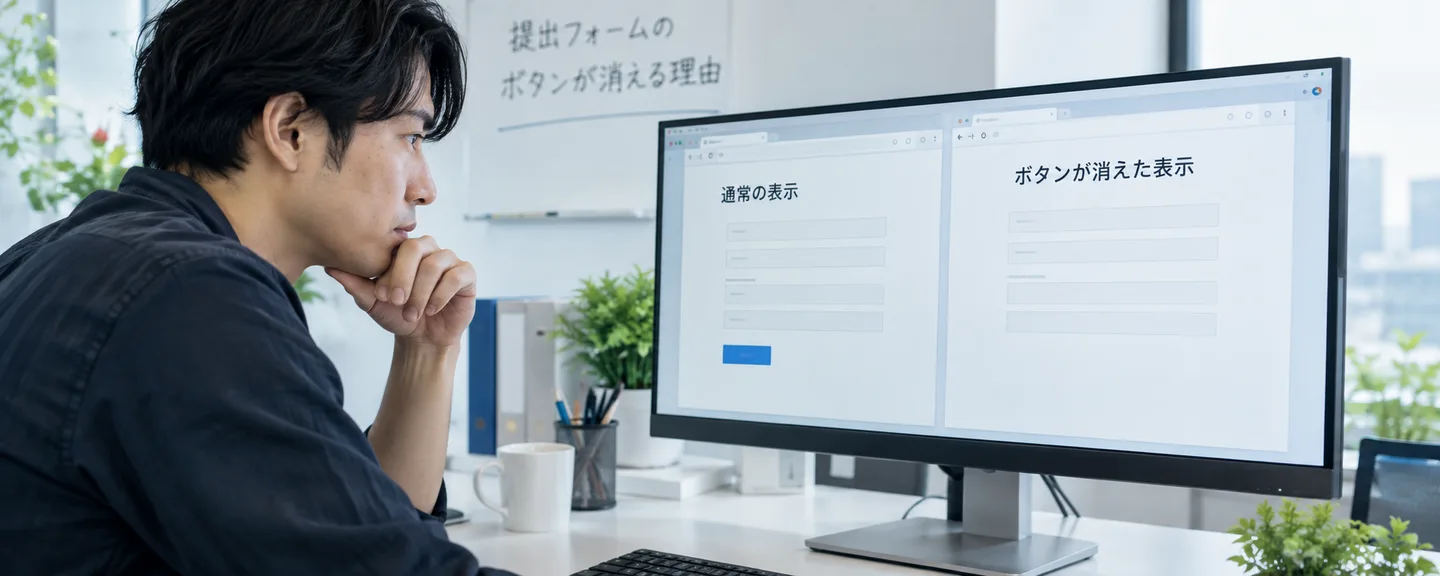
Symptom 1: The button or link doesn't appear
If you can't find the entry point, before assuming it's a glitch, check who you're logged in as, which store you've selected, and which screen you're looking at.
Check 1. Compare the notification with the status on your screen
Under "Actions" on the home page, red alerts show important messages about your account status, and yellow alerts warn of risks such as deactivation. Under the agreement, when Amazon suspends or terminates your use of its services, it is supposed to notify you of the reason and your options for appeal (with some exceptions). So start by rereading the body of the notification to see whether it tells you where to submit and what to submit. If you can't find the email, you can check notifications and their delivery status in the Notification Center (通知管理センター). However, it only shows the past 30 days, so look for older notifications in the Performance Notifications tab of Account Health as well.
In one case, Amazon staff responded that a notice about a temporary hold due to "unusual payment activity" (異常なお支払いアクティビティ) appeared to relate to a buyer account. Make sure the notification actually concerns an action taken against your selling account.
Check 2. Search again using the new menu layout
According to Help, the redesigned Account Health page can be opened from the navigation bar at the top, and Performance Notifications is a tab within it. User Permissions (ユーザー権限) and Notification Preferences (通知設定) are under the gear icon at the top right, then "Settings" (設定). Even if you can't find the path described in an old manual, you can search for the screen name in the search bar at the top.
Check 3. The logged-in user and their permissions
The pages you can see depend on your user permissions. The primary user who registered the account (the account administrator) can use every page offered for the account type, but invited secondary users are limited to the permissions they've been granted (the user permissions feature is available to Professional sellers only). We couldn't confirm in Help which permission is required for appeals, so if the entry point doesn't appear under a staff member's login, check for it on the primary user's screen and, if necessary, ask to have the permission granted. Avoid sharing login credentials. Amazon warns sellers never to share their credentials with anyone.
Check 4. The store you've selected and your selling plan
The Account Health Rating is shown separately for each store, so if you manage multiple stores, check the drop-down near the top left of the screen to confirm you've selected the store that received the action. The pages you see also differ depending on whether you're on the Individual or Professional plan and whether you use FBA.
Check 5. The "Next steps" column and other dashboards
If you open "View all" under Product Policy Compliance, you'll see a history of removed content, its current status, and the next steps. The "Next steps" column for each product sometimes points you to the entry point. If an inactive product doesn't appear on the Account Health page, Help directs you to check Manage Your Compliance. In one case involving a removal for safety reasons with a notification under Food and Product Safety (食品と製品の安全), Amazon staff responded that the seller should contact the responsible team.
Check 6. Whether you recently submitted an appeal or documents
If the button seems to have disappeared after you submitted once, your submission may have gone through and be under review. The conditions under which the button disappears aren't published, so before resubmitting, confirm whether you've already submitted and whether any requests for additional information have arrived (we cover what happens after you submit later in this article).
Checklist when the button doesn't appear
- Do the notification and the alert refer to the same action?
- Does the body of the notification give a submission method or reply address?
- Are you logged in as the primary user?
- Have you selected the store that received the action?
- Have you checked the "Next steps" column and other dashboards?
- Did you just submit an appeal?
Symptom 2: The button is grayed out, or there's no input field
One possible reason you can't click the button is that the case is under review and input has been closed. The conditions that disable the button aren't published, but the identity verification FAQ explains that you can't update information or upload documents while verification is in progress. The identity verification Help page also cautions against resubmitting documents or appealing while a review is underway. In a case where the button for creating a case to dispute a return request was grayed out, Amazon staff explained that it was a temporary system restriction related to factors such as the order status, so a grayed-out button doesn't necessarily mean something is broken. If you recently submitted an appeal, see Check 6 as well.
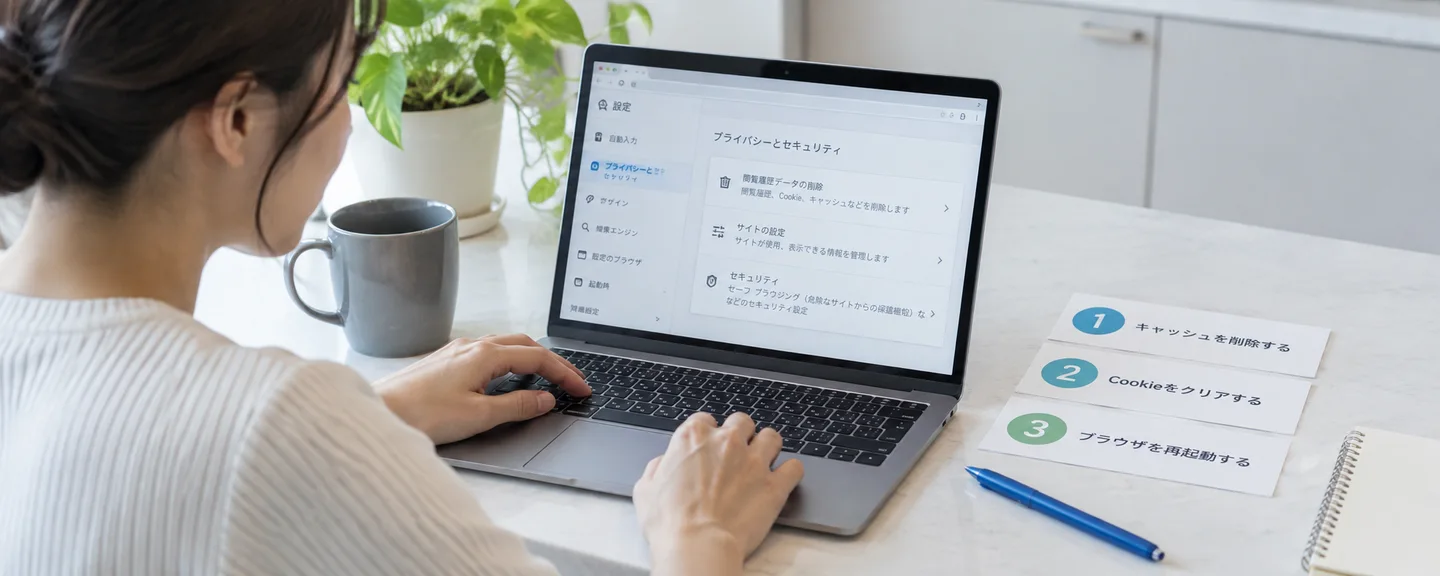
When the button is grayed out and you can't submit, the US version of Help suggests trying a different browser, clearing your cache, submitting from the Amazon Seller app, or reaching out through [Contact us]. The Japanese version has no equivalent section, so check on your Japanese screens whether these options are available.
Seller Challenge (セラーチャレンジ), available to sellers covered by Account Health Assurance, applies to listing-level actions after you've tried a standard appeal; account deactivations are not covered. Eligible actions display text or an icon indicating Seller Challenge on the Product Policy Compliance page. If you don't see it, possible reasons include that you aren't covered by Account Health Assurance, that the action isn't eligible, or that you haven't tried a standard appeal yet. You can use it up to three times every 180 days.
Symptom 3: You get an error when you submit, or can't attach files
An error message appears
In response to a post (February 2026) from a seller who couldn't submit an appeal because the message "An error happened. Please refresh the page." appeared, Amazon staff pointed them to Technical Support and recommended checking the following first.
- Clear your browser's cache, cookies, and history
- Try a different browser to see whether the same error appears
- Make sure you're using the latest version of a supported browser
- Check how your antivirus software is behaving
- If possible, see whether the problem occurs on a different computer
According to Help, the supported desktop browsers are the latest versions of Firefox, Chrome, Safari, and Edge. These steps won't necessarily fix the problem, but what you tried will be useful information when you contact support.
You can't attach a file
| Type of document | Main requirements (as stated in Help) |
|---|---|
| Additional documents requested for identity verification (examples from Help) | Under 50 MB. One of TIF, TIFF, PNG, JPG, PDF, or JPEG. No special characters such as $, &, or # in the file name. Must not be password-protected or altered, and must be fully legible. Can be uploaded only through Seller Central |
| Documents for a seller performance review | Screenshots are generally not accepted (except in some countries). Utility bills must have been issued within the past 90 days |
| Appeals that require invoices | PDF or image (.jpg, .png, .gif). Editable formats such as Excel (.xlsx) or Word (.docx) are not accepted |
How to contact support: choosing the right channel and what to say
If you've checked your screens and still can't find the entry point, it's time to contact support. Consulting support by phone or through a case and submitting an appeal are two separate things. Use the support channel to confirm the entry point and the information you need, then submit the appeal through the path you're directed to.
Choosing the right channel
| Channel | Best for | How to reach it |
|---|---|---|
| Account Health Support | Understanding what a notification means, how to proceed with an appeal, and what information you need to recover | "Contact us" (お問い合わせ) on the Account Health page. Enter your phone number and a specialist will call you (also available in the Seller app). Professional sellers only |
| Technical Support | System problems such as on-screen errors | "Help" at the top right of the screen, then "Get Support" (サポートを受ける) (labeled "Use support and cases" (サポートとケースを利用する) in Amazon staff replies on the forums) |
| "Get support" (サポートを受ける) on the login page | You can't log in | Call via the link at the bottom of the login page (per Amazon staff) |
| Urgent request (緊急対応依頼) | Highly urgent issues, such as the effects of fraudulent activity or problems receiving payments | An option on the Technical Support form. It is not a channel for appealing a deactivation |
Account Health Support is available year-round, and you can check its hours from "Contact us." Individual sellers aren't eligible for this channel and are directed to use Help, the Seller Forums, and similar resources instead, so if there's no "Contact us" button, your selling plan may be the reason. We cover preparing for a phone call in preparing before contacting Account Health Support, and how to write a case in organizing your request to Technical Support.
Make a "screen memo" before you contact support
If all you say is "The button isn't there," you'll end up going back and forth to clarify, so note down the following items beforehand.
| Item | What to record |
|---|---|
| Date, time, and user | When the problem occurred, and whether you were the primary user or a staff member |
| Store and screen | The store you had selected, the screen name, and the end of the URL (e.g., /performance/dashboard) |
| The button you're looking for | The button name exactly as given in Help or the notification |
| The message displayed | Copy any error message word for word, even if it's in English |
| Environment and what you tried | Browser and OS, plus steps such as clearing your cache, trying another browser, and checking your antivirus software |
| Notifications and cases | The subject line and date received of related notifications, and any existing case ID ("Help" > "Case History" (ケース履歴)) |
Save screenshots that show the address bar, the selected store, and a legible error message. Below is a sample message you could write in a Technical Support case, and you can convey the same points by phone. It's a hypothetical example, not a real case, so adapt it to your own situation.
I'm trying to submit an appeal as instructed in the deactivation notice dated [month/day], but the "Reactivate your account" button isn't appearing on the Account Health page.
I'm logged in as the primary user with the Japan store selected. The problem persisted after clearing my cache, using a different browser, and using a different computer. I've attached screenshots.
Please let me know the steps for submitting an appeal and, if a different submission method has been specified, what that method is.
Keep to one case per issue
Technical Support's guidelines state, among other things, that you should create one case per issue, not open a new case if one for the same issue is already under review, reopen a closed case if you have questions about it, and neither reopen nor create a new case for an issue you've been told won't be addressed. If you don't follow these guidelines, your case may be closed.

What not to do: actions that backfire when you try to make the button appear
- Sending the same documents over and over during a review: Help cautions against resubmitting repeatedly before enough time has passed for the review, and against resending inaccurate documents.
- Opening multiple cases for the same issue: This goes against the guidelines above, and your cases may be closed.
- Changing your bank account or address to make the button appear: Changes to your address, bank account, and similar details can trigger a seller performance review, so you risk setting off a separate review.
- Deleting listings to clear a violation: Closing a listing does not remove the violation from the Account Health page.
- Getting to the submission screen through a link in a suspicious email: Amazon recommends not clicking links in suspicious emails and instead typing the address into your browser to go to the site directly. When you receive a notification email, log in to Seller Central directly, check whether the same notification appears on the Account Health page or in the Notification Center, and follow the instructions there.
- Editing or recreating documents, or opening a new account to keep selling: Altered documents (for example, digitally edited ones) are not accepted. Under the Seller Code of Conduct, you may have only one Seller Central account for each region where you sell, unless you have a legitimate business need and all of your accounts are in good standing. Creating a new account to keep selling while your account is deactivated violates this code.
What to check after you submit
- How long a response takes: Help says that a response to an account deactivation appeal can take up to about 2 days. This doesn't indicate when, or whether, your account will be reactivated.
- Requests for more information: If you're asked for additional information, Help directs you to submit it from "View Account Health request" (アカウント健全性の要請を見る).
- Updates to what's displayed: There are posts from sellers whose warnings stayed on the list even after their appeal was approved and were removed only after they contacted support. If nothing changes, note down the approval notification and your case ID and contact support.
If time is passing without a reply, see what to check when your review isn't moving forward. To review your submission materials and submission records, see checks to run before submitting a plan of action.
Frequently asked questions
Q. When I log in, I see "Your account is deactivated" and can't go any further.
A. On the forums, Amazon staff have advised that if there's an item called "Verify account" (アカウントを確認) under "Catalog" > "View Selling Applications" (出品申請を表示) in the menu, you should wait for a response while its status is under review. If that item isn't there, they advise creating a case from "Help" > "Use support and cases" (サポートとケースを利用する). The menu locations may have changed. If you can't log in, see also checking a Seller Central authorization error.
Q. Can I submit an appeal from my smartphone?
A. The Japanese Help pages we reviewed explain that you can use the "Contact us" button for Account Health in the Amazon Seller app, but we couldn't confirm whether you can submit an appeal from the app. The supported mobile browsers are the latest versions of Chrome and Safari. If you run into trouble, try from a computer as well.
Q. I'm stuck at identity verification during seller registration. Is there the same appeal button as for a deactivation?
A. On the question of disputing a decision to reject an application, the identity verification FAQ answers that "verification decisions are final." That explanation applies when an application has been rejected, which is a different situation from appealing the deactivation of an active account. If your application is still under review or you've been asked for additional documents, submit them following the instructions in your notification and on screen, and keep in mind that Help advises against resubmitting or appealing while the review is in progress.
Q. The instructions on screen and what support tells me don't match.
A. In response to a post from a seller who was told on screen to resolve the issue via a "Resolve" (解決) button but was then told by support that there was no such violation, Amazon staff asked for the case ID. Gather the case ID, the exact wording of the instructions, and screenshots, and ask support to check.
Q. Can I wait to think about the wording of my plan of action until after I find the button?
A. If you organize the root cause, corrective actions, and preventive measures based on the facts of your own business while you look for the entry point, you'll be able to fill in the form calmly. Some appeals use a multiple-choice format, so match your format to the instructions on screen. We explain how to put one together in how to structure a plan of action.
Summary
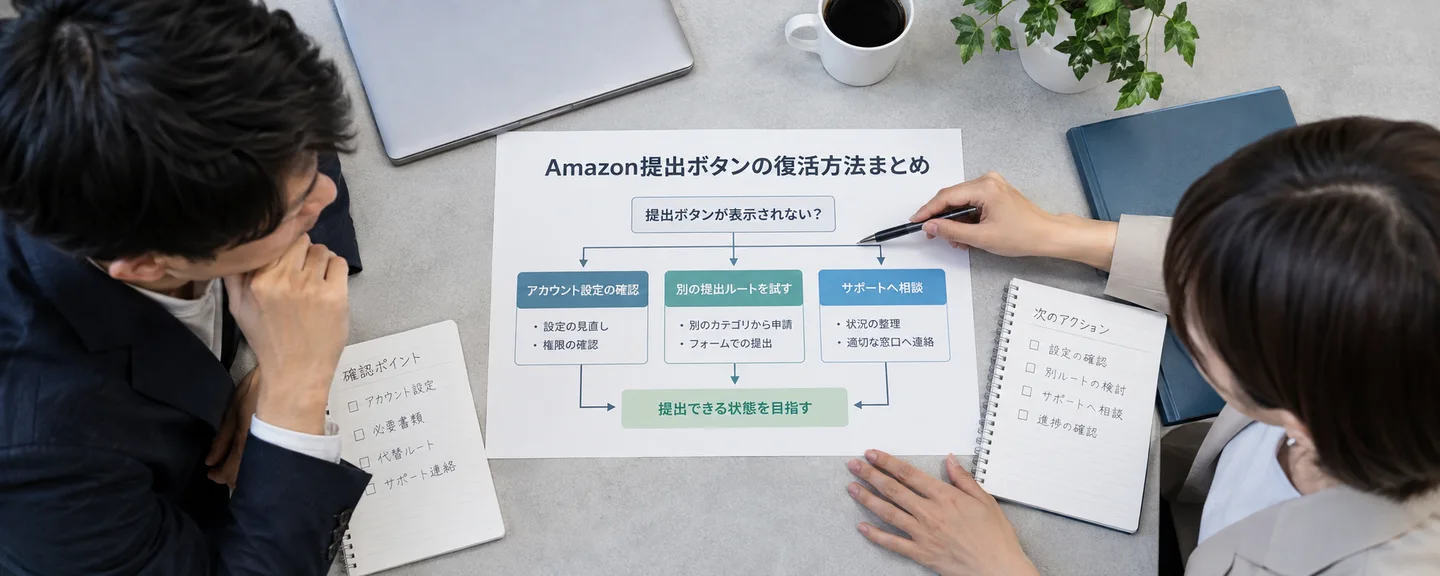
When you can't find the submission button, the basic approach is to look for the entry point based on the type of action you received, not the name of the button.
- A plan of action is content you provide on the appeal screen. What you're looking for is an entry point such as "appeal," "reactivate," or "submit information"
- If it doesn't appear, check the user, store, menu, other dashboards, and whether you've already submitted. If you can't click it, check whether a review is in progress and the appeal format. If you get an error, check your browser and attachments
- If that doesn't solve it, make a screen memo and contact the appropriate channel. Keep to one case per issue
- Don't try to solve the problem by changing your registration details, deleting listings, altering documents, or creating a new account
You can see the overall process from deactivation to reinstatement in the big picture from account suspension to reinstatement request. If you're unsure how to organize everything, consider consulting an expert as well.
Need help finding where to submit your plan of action?
We'll assess your prospects for reinstatement at no cost. Consultations are free, as often as you need.
 Free consultation, 24/7
 *This article provides a general explanation. The appropriate response in individual cases depends on the circumstances.